
Where to Access Billing Reports in QuestTrak
Go to the Billing Dashboard: Billing Reports
-
All invoices and associated reports are available through the Billing Dashboard in QuestTrak.
-
These reports are accessible through the paperclip
 menu on the left side of the screen.
 -
The second tab contains Billing Reports. The main page is the Historical Snapshot, which will give an overview of the most recent month’s activity.
This data is exportable as an excel file through the Options icon  in the upper right-hand corner
-
Click the Export Seminar, Compliance and Admin Activity report.
Tip: The export will open in a protected view. Make sure you enable editing before beginning to manipulate the data.
-
The Excel workbook will open the QT Compliance and Admin Activity data sheet.
-
To toggle between the QT Compliance and Admin Activity report and QT Seminar Activity report, click on the tabs located at the bottom of the workbook.

How to Use the AutoSum Feature in Excel
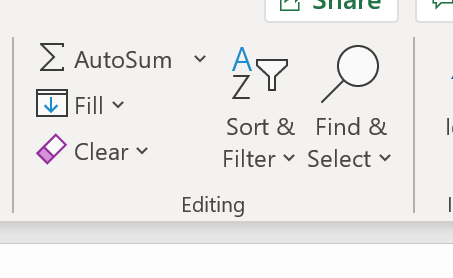
A helpful function in Excel that allows you to sort the data is the AutoSum function
AutoSum: Can be used to quickly and easily total a column or row.
To use AutoSum:
-
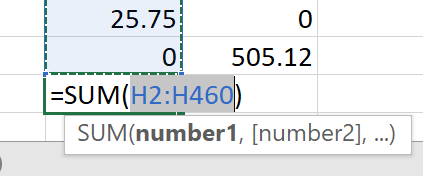
Select the cell directly below the column (or to the right of the row) that needs to be totaled
-
Click the AutoSum option and excel will automatically fill in the formula to add the row or column together.
-
Press the enter key and the total will then show instead of the formula.
How to Use Pivot Tables in Excel
Another helpful function that is used to manipulate and view data in Excel is a Pivot Table
Pivot Tables: Can be useful to easily sort and total details based on specific criteria.
To use Pivot Tables:
-
Highlight the entire block of information to be sorted (typically the entire sheet)
-
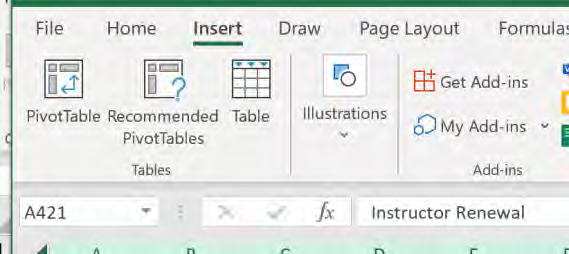
Click the PivotTable icon
-
A “Create PivotTable” box will pop up, click OK
* This will create a new sheet within your current workbook with a tab at the bottom. The right side of the screen contains the PivotTable Fields. Drag and drop any of the categories from the options at the top, into the four boxes below
Example #1
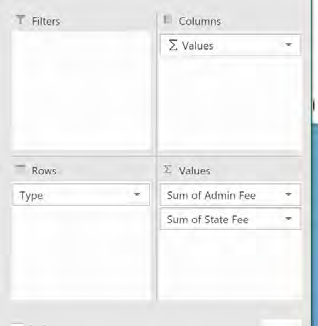
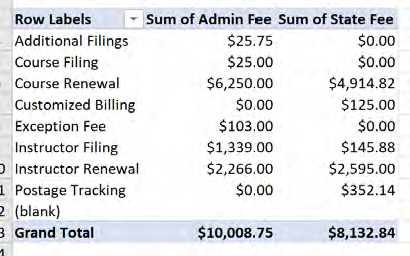
The example below shows how the information in the boxes translates to create the table shown on the left for compliance data.
Example #2
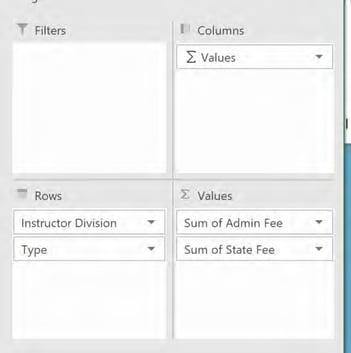
The below example is set up the same as the one above, except it adds the “Instructor Division” above Type, which breaks the data out even more. Alternately, instead of Instructor Division, it could be Host, or Channel, or any other category pertinent to your specific billing verification and billback process.
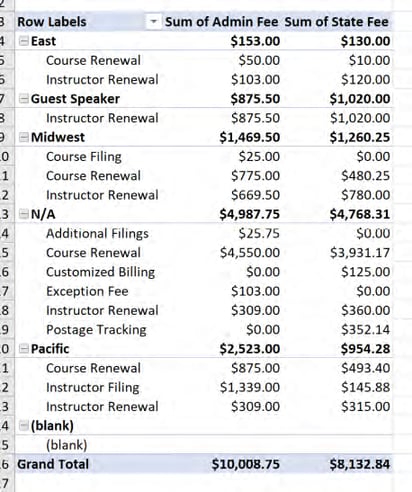
Please note: The above examples show Compliance & Admin billable activity, but a separate pivot table can be created with the Seminar Activity details as well.
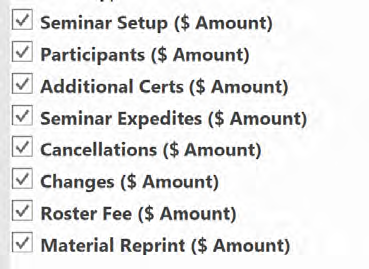
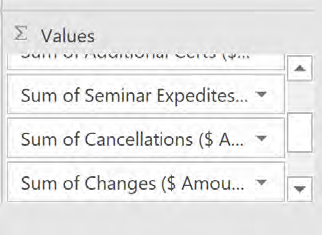
Any of the Categories shown below should be dragged into the Values category:
-
Then, select which Category you want to sort the data by putting it into the Row category (the row displays data on the side of the report, whereas the column displays data at the top of the report.)
Tip: The most common options include Instructor Name, Host Name, Instructor Division, Instructor Channel, or Event Type