
How to Submit a Seminar Change Request:
Step 1: Once you have logged into your account, click on the Seminars  icon in the top menu bar.
Step 2: Next, search for the course that you need to track materials for.
Step 3: When you locate the course, click on the Management  icon on the right.
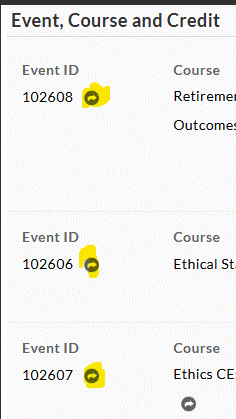
Step 4: Once you confirm that the course you selected is the one you need to update. Scroll down to the "Event, Course, and Credit" section. From here choose one of the events and click into the arrow next to the event ID (highlighted in yellow)
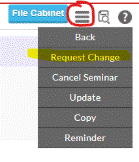
Then click on the Menu  icon in the upper right-hand corner of the screen and select Request Change from the dropdown.
Step 5: A warning will pop up to inform you that submitting a change request does not guarantee approval. Fill in the required information (Person Requesting, Reason for Cancelling, and further Explanation for the change).
Step 6: When you are finished, click Submit.
* Once a change request has been submitted, you will see the status listed as “PENDING” in the seminar details.